 Haily
Haily's menus and buttons are in Vietnamese for now. Where this guide names something on screen, it gives the meaning in English followed by the label you will see, for example Settings (“Cài đặt”). You can talk to Haily itself in English.
1. Install
Haily comes as one download that installs three parts together: the app you see, a background service that keeps working when the window is closed, and a command-line tool for people who like the terminal. You only need to think about the app.
On Windows
- Go to the download page and choose Download for Windows.
- Open the downloaded installer and follow its steps. Haily installs for your own user account.
- Start Haily from the Start menu. A small Haily icon also appears in the system tray, next to the clock.
On Linux
- Choose Download for Linux on the download page.
- Open the package with your software installer, or install it from a terminal with your package manager.
- Start Haily from your applications menu. If you want Haily to work on websites for you, also install Google Chrome or Chromium.
After that, Haily looks for new versions by itself and tells you when one is ready. See how updates work.
2. First-run setup
The first time you open Haily, a short setup appears over the main window. It makes sure your very first message works.
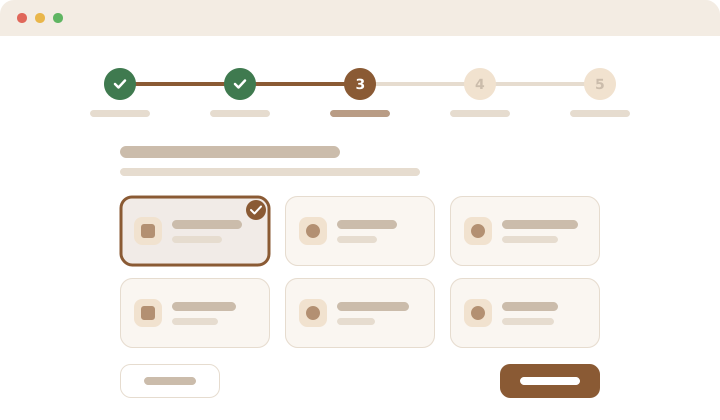
- Choose a model (“Mô hình”). This is Haily's “brain”. Sign in to an AI account you already have (OpenAI, Claude, Gemini, ChatGPT, OpenCode Go or Antigravity), or pick Ollama if it already runs on your computer. You can add Haily's built-in local engine later in Settings.
- Connection check (“Kiểm tra”). Haily sends one tiny test message to confirm the account works. If it fails, the screen tells you why in a sentence, such as a wrong key or a used-up quota.
- Telegram (optional). Connect a Telegram bot to chat with Haily from your phone. You can skip this and do it later; see Telegram.
- Library (“Thư viện”, optional). Choose the folder of documents you want Haily to read. See Library.
- Done (“Xong”). Haily suggests two example requests. Click one to try it.
You can run the setup again at any time from Settings › General (“Cài đặt” › “Chung”).
3. Chatting and effort
The main window has your conversations on the left, the chat in the middle and a work area on the right where Haily shows documents, web pages and results.
- Type your request in the message box at the bottom and press Enter. Write as you would to a capable assistant: what you want, for whom, and anything it should keep in mind.
- Watch the reply arrive. Above the answer, Haily lists the steps it took, such as searches or files it read; click to expand them.
- Choose how hard Haily should think with the effort selector next to the message box: “Tự động” (Auto, Haily decides), “Thấp” (Low, quick answers), “Vừa” (Medium, balanced) or “Cao” (High, deeper reasoning, slower and costlier).
- Start a new conversation for a new topic. Haily still remembers what matters across conversations (see Memory).
Press Ctrl + K to open the command palette and jump to any screen by typing its name.
4. Approvals and undo
Haily can change files, send messages and act on websites, so you decide how much it may do without asking.

- Pick an approval level next to the message box (or in Settings › Safety, “An toàn”):
- “Tự động” (Auto): Haily does things that can be undone by itself and always asks before anything that cannot, such as sending, posting, deleting or paying.
- “Hỏi từng bước” (Ask every step): every action waits for you. The safest choice.
- “Tự duyệt thay đổi” (Approve changes): changes that can be undone go ahead; everything else still asks.
- “Tự duyệt tất cả” (Approve everything): no questions at all, including actions that cannot be undone. Use with care.
- When Haily needs permission, an approval card appears in the chat. Read what it wants to do, then allow or refuse.
- To undo, use “Khôi phục” (Restore) on the file changes in a reply, or “Quay lại trước lượt này” (Go back to before this turn) to return your files to how they were before that request.
- To stop all changes at once, turn on “Tạm dừng mọi thao tác ghi” (Pause all write actions) in Settings › Safety. Haily can still read and answer, and undo keeps working.
Every action Haily takes is recorded in a journal, so you can always see what happened.
5. Memory and the Knowledge window
Haily remembers facts and preferences you share, so you do not have to repeat yourself. Everything it knows is visible and editable in the Knowledge window (“Tri thức”).
- Open it from the app menu: “Quản trị tri thức (KMS)” › “Tri thức”.
- Under “Trí nhớ” (Memories), read what Haily remembers about you. Edit an entry, or forget it for good.
- When two facts contradict each other, Haily lists them under “Cần duyệt” (To review) so you can confirm the right one.
- “Trang” (Pages) holds notes and pages Haily wrote for you; “Thư viện” (Library) your documents; “Kỹ năng” (Skills) and “Bài học” (Lessons) what Haily learned from working with you; “Lộ trình web” (Web routes) the website routines it learned.
- Learning runs in the background on your default model, within a daily budget. Under “Bài học” you can turn learning off or change its budget; a budget of 0 keeps learning on your computer only.
6. Library and cited research
Your Library is an ordinary folder on your computer. Haily reads the documents in it, builds a private index on your machine, and answers questions with numbered sources such as [1] and [2].

- Choose your Library folder during setup, or later in Settings › General under “Thư mục Thư viện” (Library folder). On Linux, choose a folder of your own, for example one in your home folder.
- Copy documents into it: PDFs, text and Markdown notes, web pages saved as HTML. New and changed files are picked up within seconds. Scanned PDFs without a text layer are listed but cannot be searched.
- Browse what Haily has read in the Knowledge window under “Thư viện”.
- Ask a question, for example “What do my three latest reports say about delivery times?”. Click a number in the answer to see the passage it came from.
- For questions that need the web, start your message with
/research, for example/research latest guidance on lithium battery shipping. Haily searches, opens the pages and re-checks every citation against the page it opened before giving you the answer.
Changing the Library folder never moves or deletes your files.
7. Schedules
Scheduled tasks (“Lịch trình”) let Haily do things for you at set times or when something happens, even with the window closed.
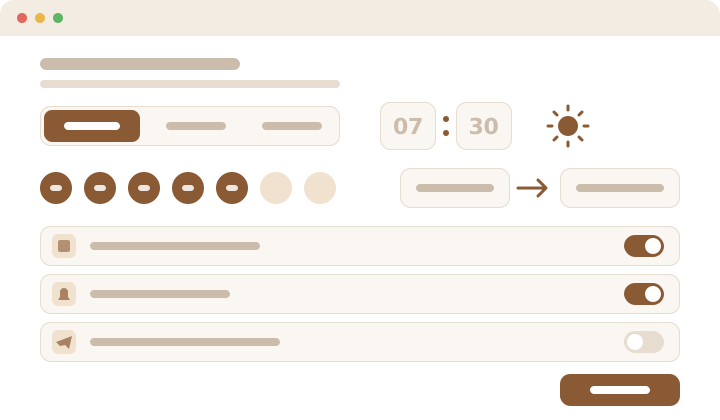
- Look at “Bản tin buổi sáng” (Morning brief): Haily creates it for you. Every morning at 7:30 it gathers today's calendar, tasks and reminders. Change the time, pause it or delete it like any task.
- To add a task, click + next to “Lịch trình” at the top of the conversation list.
- Choose when it runs: every day or week at a time, when files in a folder change, or after another task finishes (“Khi tác vụ khác xong”), so you can chain steps such as “collect the figures, then write the summary”.
- Describe what to do in plain words, and choose where results go: a card in the app, a desktop notification and/or Telegram.
- Already did something useful in a chat? Open the conversation menu and choose “Tạo lịch trình từ cuộc trò chuyện này…” (Create a schedule from this conversation). Haily drafts the task for you to review.
A scheduled task can stop and ask you a question, then wait for your answer. On its own it only reads, searches and reports; it never changes files or sends things without you.
8. Telegram
Connect Telegram to chat with Haily from your phone and receive results wherever you are. Haily talks only to you, in a private chat.
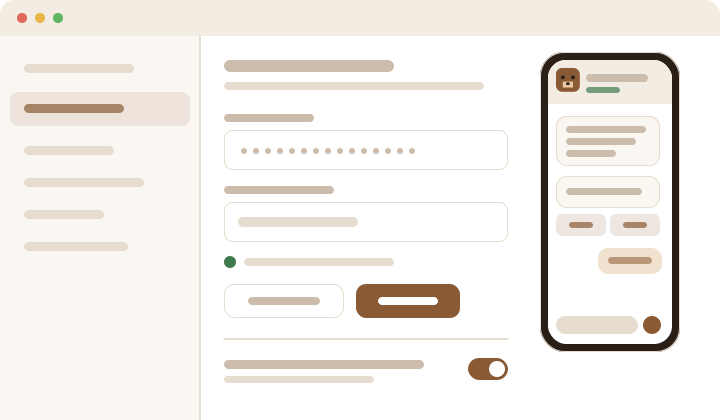
- In Telegram, open a chat with @BotFather, send
/newbotand follow its questions. It gives you a bot token: a long line of letters and numbers. - In Haily, open Settings › Connections (“Kết nối”) › Telegram, paste the token and save.
- In Telegram, open a private chat with your new bot and send
/myid. The bot replies with your chat number. - Paste that number as the owner chat in the same Telegram settings and click “Khởi động lại” (Restart) to apply it. From now on the bot answers only you.
- Optional: turn on “Nhắc qua Telegram khi Haily chờ bạn…” so that, when Haily is waiting for your approval or answer and you are away from the computer, it sends you a short reminder after a few minutes.
9. Working on the web
Haily can use a real web browser to look things up, compare offers, fill in forms and collect information. You can watch every step.
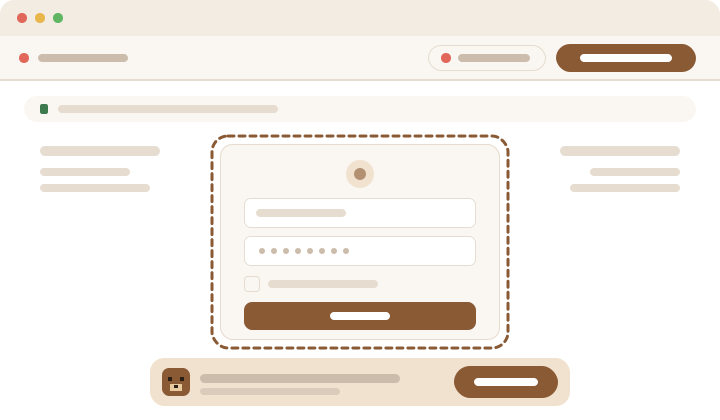
- Ask for a web task, for example “Find three hotels near the conference centre under 150 euros and list them in a table”.
- Follow along live in the work area on the right, on the “Trình duyệt” (Browser) tab.
- Click “Tiếp quản” (Take over) to use the page yourself at any moment, and “Trả lại” (Give back) to let Haily continue.
- When a page asks for a login or a captcha, Haily stops and hands over to you. Finish that step, then let it carry on.
- To teach Haily a routine, click “Dạy Haily” (Teach Haily), do the task once yourself, click “Dừng” (Stop), review the recording and save it. Next time Haily follows your route.
On social networks Haily deliberately works at a human pace.
10. Costs and models
Haily itself is free. If you use a cloud AI account, that provider charges you for what you use; local models cost nothing.
- Manage models in Settings › Models (“Mô hình”). Add more accounts, or a local model: Haily's built-in engine (with or without a graphics card) or Ollama.
- Leave the model picker in the message box on automatic: Haily then uses a quick model for simple questions, a medium one for everyday work and a thinking model for hard problems.
- Choose the default model (marked “Mặc định”) and its model for background work (“Mô hình cho việc nền”). Haily uses it for remembering and learning while you are not chatting.
- Open the Costs screen (“Chi phí”) from the command palette (Ctrl + K) to see spending for today, the last 7 or 30 days.
- Set a daily budget on the same screen. When you reach 80 % of it, a small amber notice appears next to the message box. It is a warning only; nothing is blocked.
11. Stopping and uninstalling
Closing the window does not stop Haily: its background service keeps your reminders and scheduled tasks running.
- To open Haily again, use the tray icon: “Mở Haily” (Open Haily).
- To stop it completely, choose “Dừng Haily” (Stop Haily) in the tray menu, or “Thoát” › “Tắt hoàn toàn Haily” (Shut down Haily completely) in the app menu. “Tạm ngừng tất cả lịch trình” pauses only the scheduled tasks.
- To stop Haily starting when you log in, turn off “Khởi động Haily khi đăng nhập” in Settings › General.
- To uninstall on Windows, open Windows Settings › Apps, find Haily and choose Uninstall. On Linux, remove the Haily package with your package manager.
- Uninstalling keeps your data folder, so a reinstall picks up where you left off. To erase your conversations, memories and settings too, delete that folder yourself:
%LOCALAPPDATA%\hailyon Windows,~/.local/share/hailyon Linux.
Still stuck? See the FAQ.